Use this guide when you want answers from the paper itself rather than skimming for them: ask in plain language, then check each answer against the passages it cites.
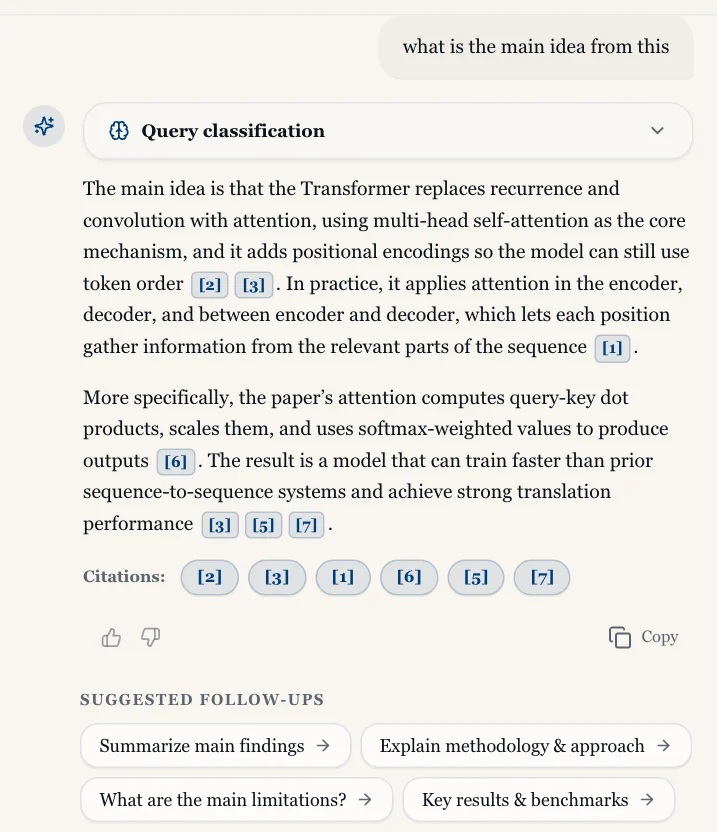 An answer in the Q&A tab
Ask a question
- Open a paper and click Tools in the top-right of the reader, then the Q&A tab.
- Type into Ask anything about this paper or highlight text... and press Enter, or click Send.
- While Literia works, a Thinking… line shows its progress. When the answer arrives, that line becomes Researched in N steps. Click it to see what was looked up.
You do not need to wait for anything before asking. If the paper is still being indexed, you will see Processing document index in background… above the chat, and you can ask anyway.
Ask about a specific passage
- Select the text in the paper.
- Click Ask AI in the toolbar that appears next to the selection.
The Q&A tab opens with your selection as the context of the question.
To ask what a technical term means in this paper, click the term where it is marked in the text and then Ask in Paper. See Read a paper with AI.
Check an answer against the paper
Every claim in an answer can be traced back to the paper:
- Click a numbered marker such as [1] inside the answer (Show this passage in the paper). The reader jumps to the cited passage and briefly highlights it.
- Or use the Citations: chips under the answer (Jump to citation in document). They list every passage the answer used.
- If the answer draws on other work, a References · N pill appears under it. Click it to expand the reference list.
 A cited passage highlighted in the paper
Some answers also include a Query classification section in the research steps, showing how Literia read your question (for example its intent). It is informational; you do not need to act on it.
Rate, copy and manage your chats
- Click Good answer or Bad answer under a response to tell us how it did.
- Click Copy to copy a response to the clipboard.
- Click New Chat to start a fresh conversation about the same paper. Your earlier chats are kept.
- Click History to reopen a past chat. From there you can rename a chat (Edit title) or delete it.
- Click Clear to remove the messages of the current session.
Ask across several papers
You can also ask questions across a whole collection or your library:
- Open your library or a collection.
- Click Ask Questions in the toolbar. The Ask your library panel opens.
- Ask as usual. Citations in the answer name the paper they come from. Clicking one opens that paper at the cited passage.
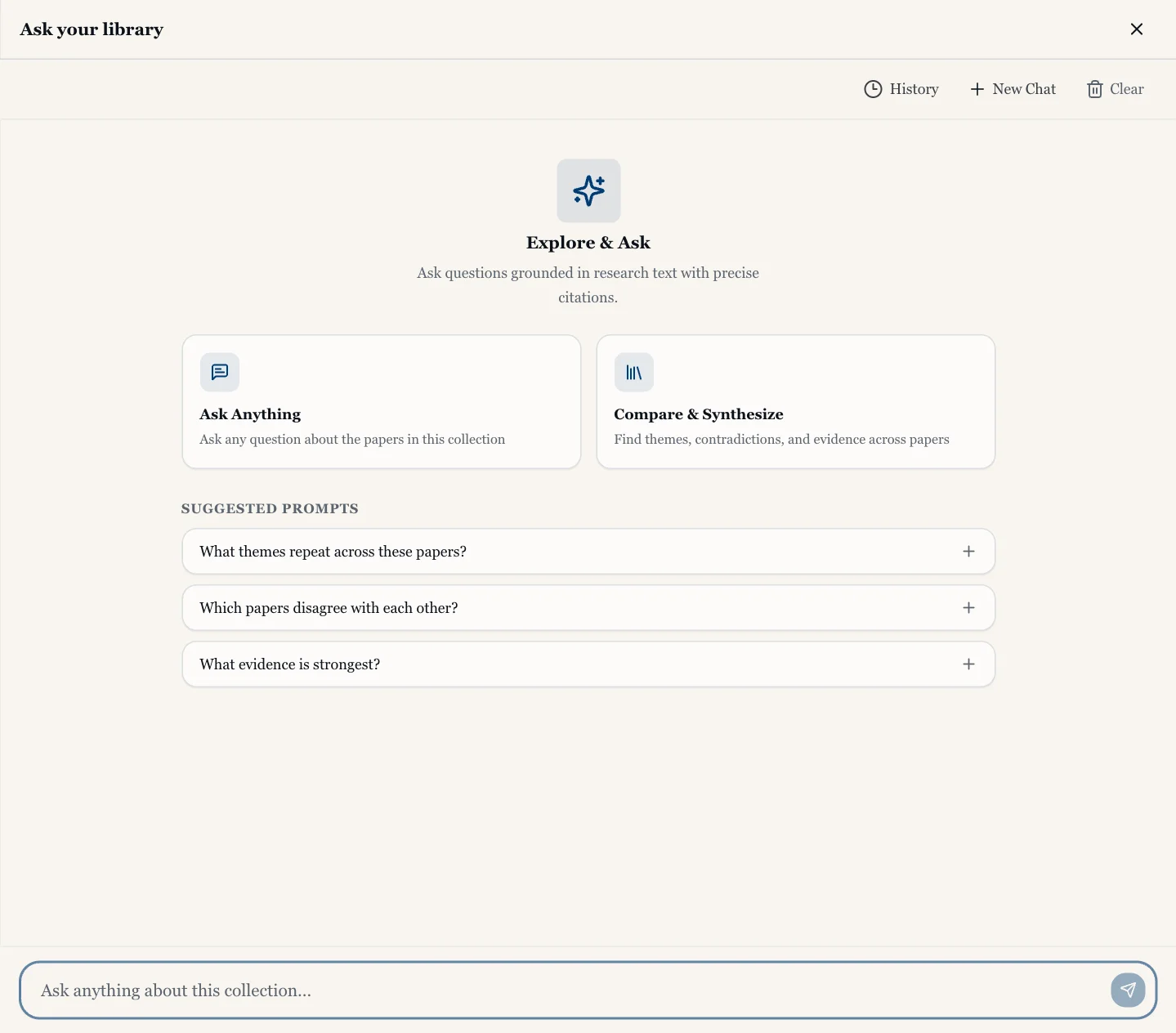 Asking a whole collection
To get a structured, written comparison instead of a chat, generate a report. See Compare papers with collections.
If something goes wrong
- "Error: Failed to get response." The question did not get an answer. Send it again. If it keeps happening, start a New Chat.
- "Save failed" under a message: the answer was shown but not saved to your history. It will be missing when you reopen this chat.
- "Could not start a new chat." Try New Chat again in a moment.
- "Failed to clear history." Your messages were not removed. Try Clear again.
- "Failed to explain keyword." The explanation for a term could not be generated. Click Ask in Paper again, or type the question yourself.
- Still stuck? See the FAQ or contact us.