Use this guide when you know what you are looking for but not which papers cover it. Literia's search takes a plain-language description instead of exact keywords and judges every result against your request.
Run a search
- Open Search from the sidebar.
- In Describe the papers you are looking for, write what you need the way you would explain it to a colleague, for example the method, the problem, and any constraints such as the domain or time period.
- Choose a search depth:
- Fast: about 10 seconds, considers 50 candidate papers.
- Diligent: about 30 seconds, considers 200 candidates and also follows citations mentioned in relevant passages ("snowball").
- Press Search. While it runs, the progress steps show what is happening, from Analyzing your request to Finalizing response.
Not sure how to phrase it? Pick one of the queries under Try an example.
 The search page
Read the results
 Results for "transformer attention mechanism"
- Each result carries a relevance tag that says how well it matches your request. Papers that haven't been judged show Unjudged.
- Open a result to see its Criteria Verdicts, which list how the paper does on each part of your request, plus its Full Abstract.
- Select Preview paper to open the paper's overview, abstract and Suggested questions in a side panel without leaving the results.
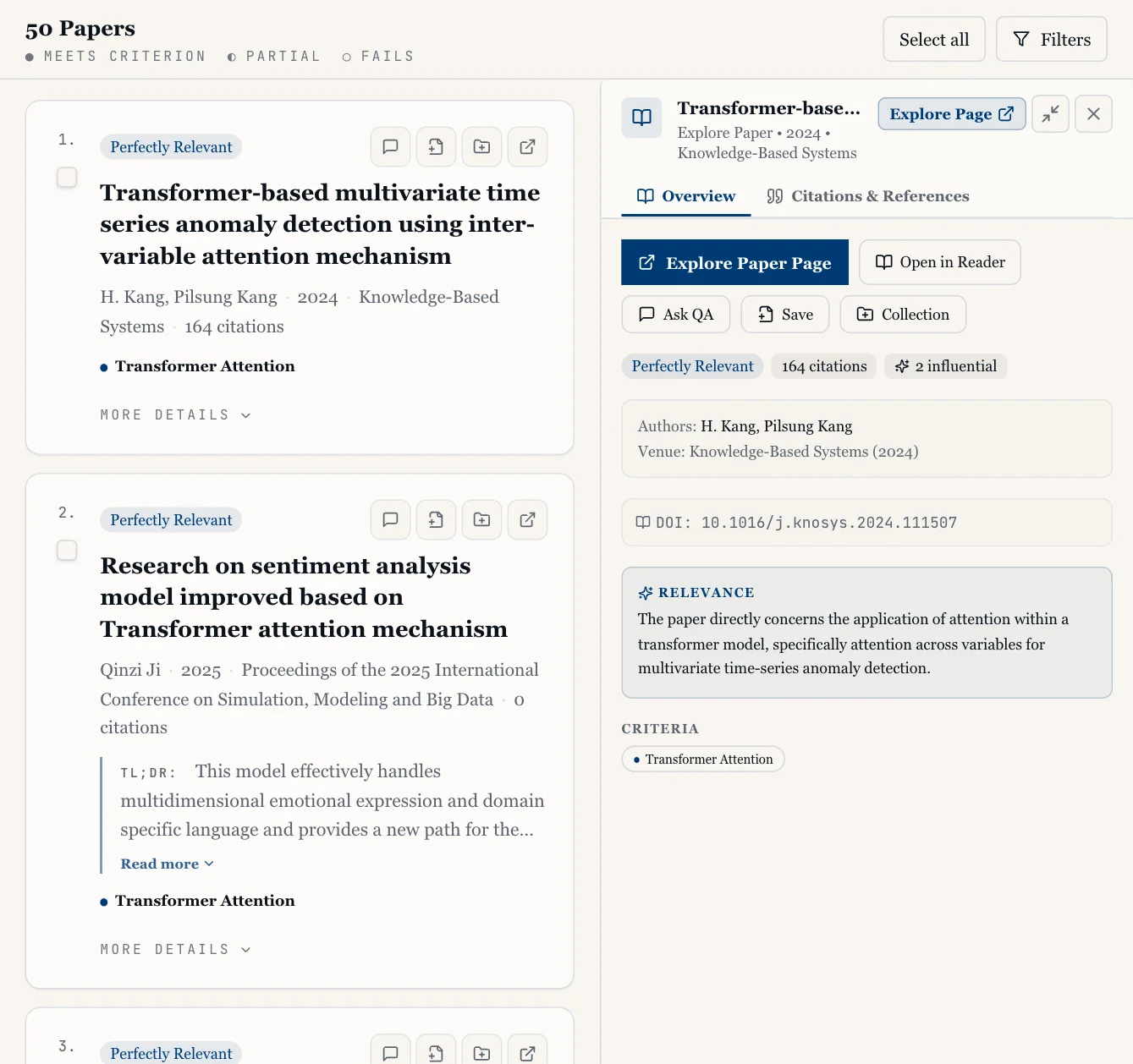 Previewing a result
Narrow the results down
Select Filters to open the filter panel:
- Sort by: Relevance, Year, Title, Venue or Citations.
- Relevance: from All papers down to Perfectly relevant only.
- Criteria: keep only papers that meet the criteria you tick.
- Year, Venue and Author: tick the values you want.
Select Clear to remove all filters. If the filters exclude everything, you will see "No papers match these filters".
To refine the request itself, pick one of the suggestions under Follow up, or start over with New search.
Act on the papers you find
On a single result, use the buttons next to it:
- Save to library: adds the paper to your library.
- Add to collection: adds it to an existing collection, or creates a new one.
- Ask QA: opens a Q&A panel to ask questions about the paper.
To act on several papers at once, tick their checkboxes (or Select all), then choose Ask QA, Save or Collection in the bar that appears.
Find a past search
Signed-in users can reopen earlier searches from Search history. Your Recent searches also appear on the search page.
If something goes wrong
- "Sign in to save papers", "Sign in to use collections" or "Sign in to start QA". You can search without an account; saving, collections and Q&A need you to sign in.
- "No results yet". Run a search first. If a search finishes with no matches, describe the topic more broadly or switch to Diligent.
- "Failed to add papers to library" or a message like "2 saved, 1 failed". Some papers couldn't be saved. Try saving the failed ones again.
- "Could not load search history." Reload the page and try again.