Use this guide when you are working with a set of papers rather than one: group them into a collection, then generate a report that reads all of them and cites every claim back to its paper.
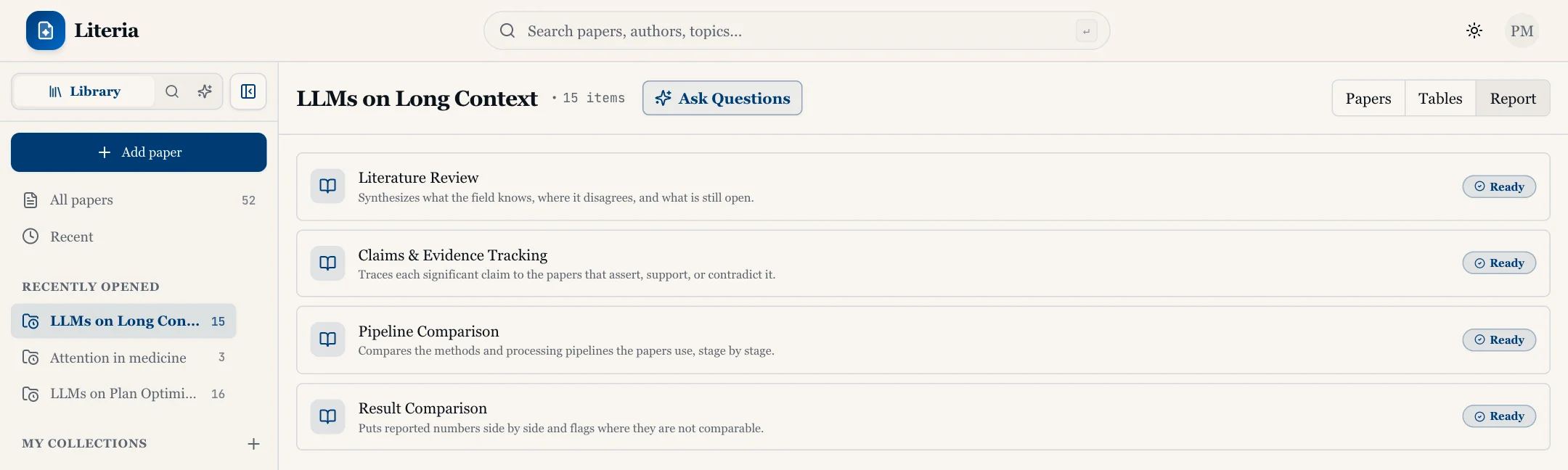 The Report tab of a collection
Create a collection
- Open your library.
- In the collections list, click Create collection. If you have none yet, the list shows No collections yet.
- Enter a Name and, if you like, a Description (optional).
- Click Create Collection.
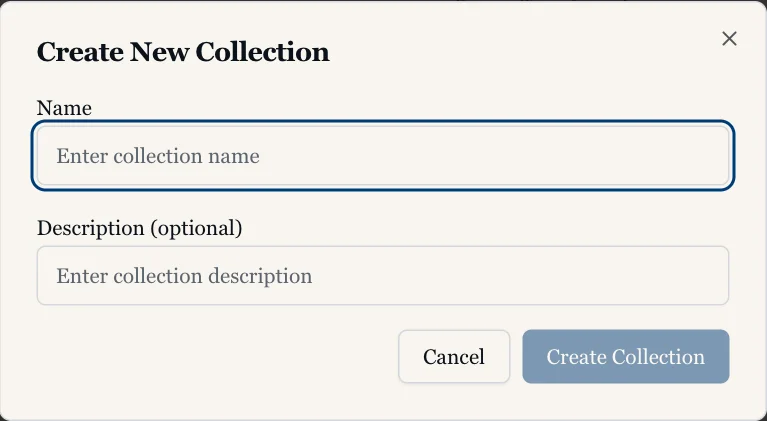 Creating a collection
To rename it or change its description later, edit the collection: the same dialog opens as Update Collection.
Add papers to a collection
A paper must be in your library before it can go into a collection. See Add papers to your library. Then use whichever of these is closest:
- From your library: click the folder icon (Add to collection) on a paper's row. In Save to Collection, tick the collections and save.
- Several at once: select papers in the library table, then choose Add to Collections.
- From search results: click Add to collection on a result.
- While reading: after Add to Library, the button turns into Saved. Click it and pick a collection under Add to collection.
 Adding a paper to collections
You can create a new collection from inside these dialogs too (New Collection).
Generate a report
- Open the collection and click the Report tab.
- Pick a report type. Each one is listed with what it is for. Ready means one has already been generated; Generate means it has not.
- Literature Review: what the field knows, where it disagrees, and what is still open.
- Claims & Evidence Tracking: each significant claim traced to the papers that assert, support or contradict it.
- Pipeline Comparison: the papers' methods compared stage by stage.
- Result Comparison: reported numbers side by side, with notes on where they are not comparable.
- Click Generate Collection Report.
- Follow the progress: Preparing papers, Planning outline, Writing sections (with a count of sections done), and Assembling report. You can collapse this panel. If some notes appear next to the progress, click them to see which parts had problems.
Compare papers in a table
The Tables tab builds a comparison table across the papers in a collection, with every cell backed by the passage it came from.
- Open the collection and click the Tables tab, then New table.
- Describe the table you want, or start from a template: Methods & datasets, Results & metrics, or Limitations & future work.
- Pick the papers to include (a table holds at most 50), then click Propose columns.
- Review the columns Literia suggests. Rename, reorder or remove them, add your own with Add column, and edit the instruction that says what to extract.
- Click Fill table. Each cell fills in as its value is extracted.
Click the source count in a cell to see the passages it came from and open the paper at that page. A cell that failed shows a retry button.
Read and check the report
- Use Report contents to jump between sections.
- Click a citation in the text to see the quoted passage and open the paper it comes from. A cited paper that is not in the collection is marked Not in this collection.
- Click Reading to adjust the typography for long reading.
- Use the report-type menu (Select report type) to switch to another report for the same collection, or Back to reports list to return to the list.
- Click Regenerate after you add or remove papers. This replaces the existing report of that type.
 A report with a citation opened
If you want a quick answer rather than a full report, use Ask Questions on the collection instead. See Ask questions about a paper.
If something goes wrong
- "Report generation failed." Click Try again. This starts a fresh generation and replaces the failed one.
- "Could not load the report." The report exists, but could not be fetched. Click Try again to reload it.
- The Report tab is missing. It only appears when a collection is selected, not when viewing your whole library.
- A paper is missing from the report. Check it is actually in the collection (the Papers tab), then Regenerate.
- Still stuck? See the FAQ or contact us.