Use this guide once a paper is open in the reader: how to switch between the PDF and HTML views, keep your own highlights and notes, and get unfamiliar terms explained without leaving the page.
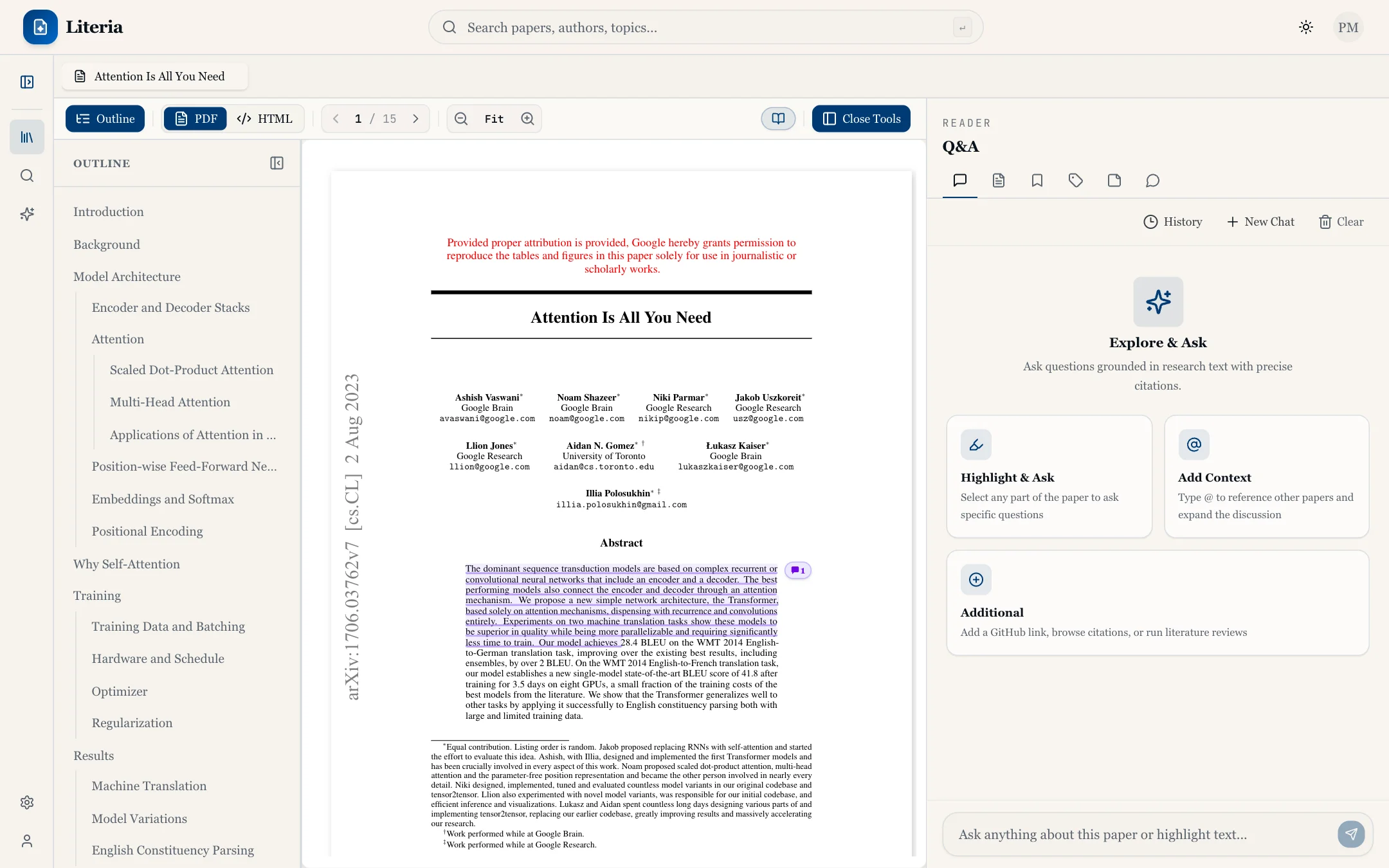 The reader with the tools panel open
Find your way around the reader
The reader has two parts:
- The toolbar along the top. On the left, the PDF / HTML toggle and the page and zoom controls. On the right, Resume (or Start), Add to Library when the paper is not saved yet, and Tools.
- The tools panel, which opens on the right when you click Tools. It has six tabs: Q&A, Summary, Highlights, Scientific Concepts, My Notes and Comments. Click Close Tools to hide it again.
On narrow windows the toolbar collapses: the page and zoom controls move into a single page-number button, and the buttons show icons only.
Switch between PDF and HTML
- Click PDF in the toolbar to read the original layout, with page navigation and zoom.
- Click HTML to read the paper as reflowing web text. The first time, Literia converts the PDF. You will see Converting PDF to HTML with a progress bar until it is done.
- In HTML view, click the Reading settings button (the sliders icon next to the toggle) to adjust how the text is laid out.
Your reading position is kept when you switch views. To jump back to it at any time, click Resume in the toolbar (Back to where you left off). If you have no saved position yet, the same spot shows Start, which takes you to the beginning of the paper.
The HTML view requires you to be signed in.
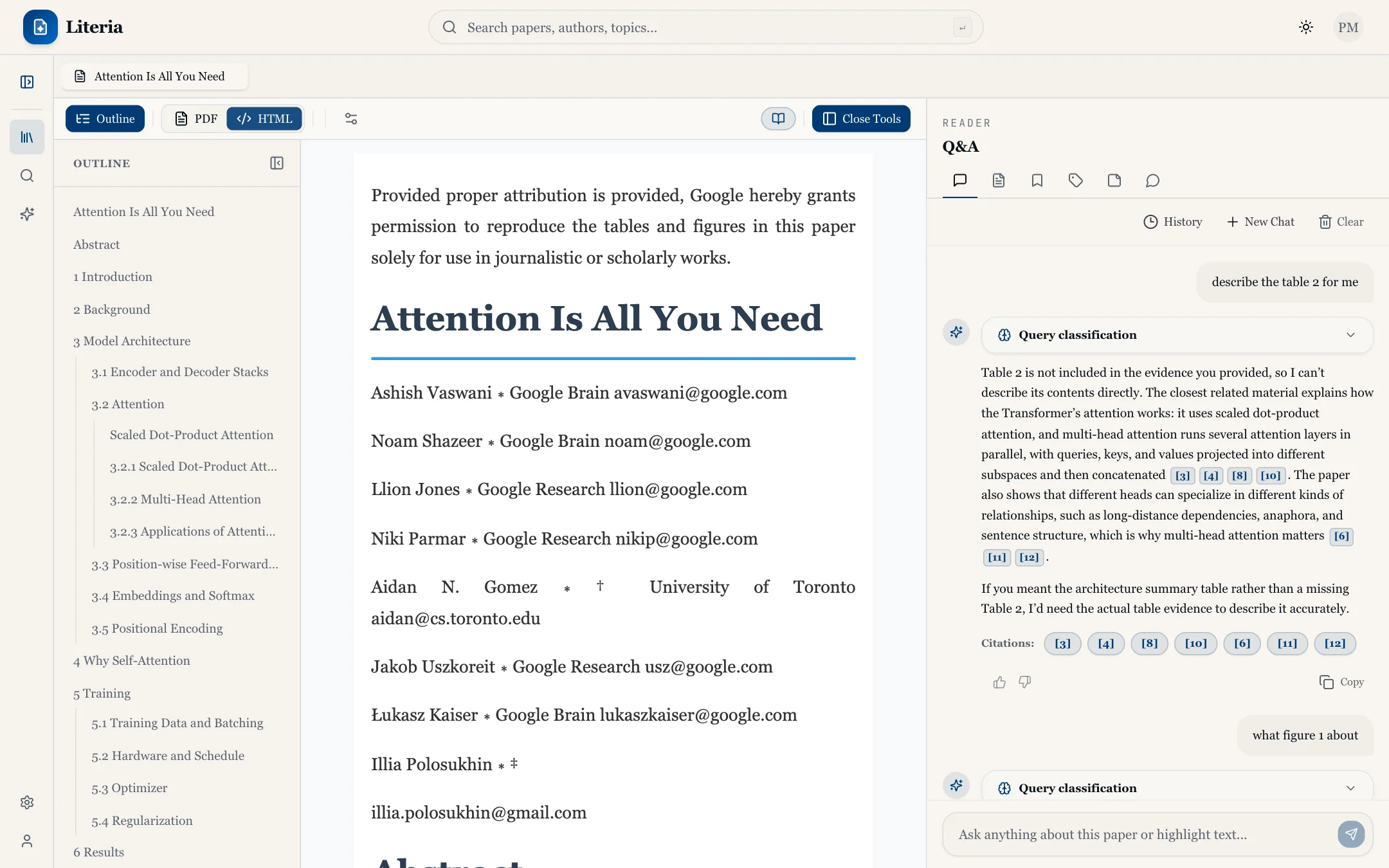 The HTML view
Get a term explained
Literia picks out the paper's scientific concepts and marks them in the text. In HTML view they are marked automatically. In PDF view you can turn them on from the Scientific Concepts tab.
- Click a marked concept in the paper. The tools panel opens on Scientific Concepts with that concept selected and its definition shown.
- Click Find in Paper to jump to where the concept appears.
- Click Ask in Paper to get an explanation of how this paper uses the term. Literia switches to the Q&A tab and answers the question "What is "…" and how is it used in this paper?".
You can also browse every concept in the Scientific Concepts tab: type in Search concepts... to filter the list, and use Highlight to show or hide the marks in the paper.
Concept levels
The Scientific Concepts tab groups concepts by how specialised they are, from general to specific:
- Broad: broad concepts of the field, from Literia's glossary.
- Foundational: the field's core concepts.
- Intermediate: key technical terms.
- Specialized: advanced, topic-specific terms.
- Niche: highly specific terminology.
- Discovered: concepts found in this paper that aren't in the glossary. Some have no definition yet.
Start with the specialised levels if you know the field and only want the new terms.
In PDF view, concept marks step aside while skimming highlights, your own highlights or comments are shown on the page, so that clicking those still works.
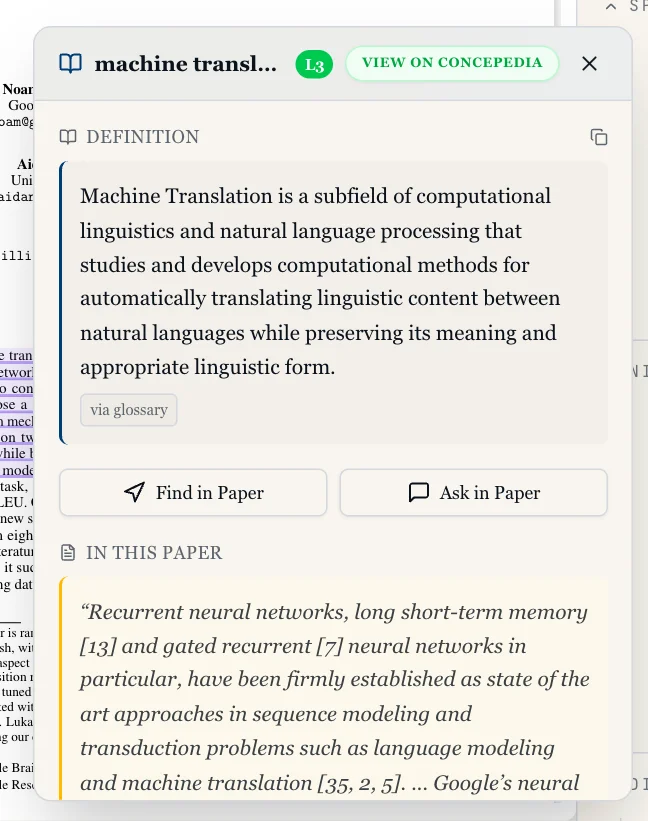 A concept card
Highlight text and take notes
- Select any text in the paper. A toolbar appears next to the selection.
- Pick a color and click Highlight (shortcut shown on the button: Alt+Shift).
- Open the My Notes tab to see everything you have highlighted. Click a note to jump back to it in the paper.
- Type #tags into a note to group notes your own way, and filter the list by color.
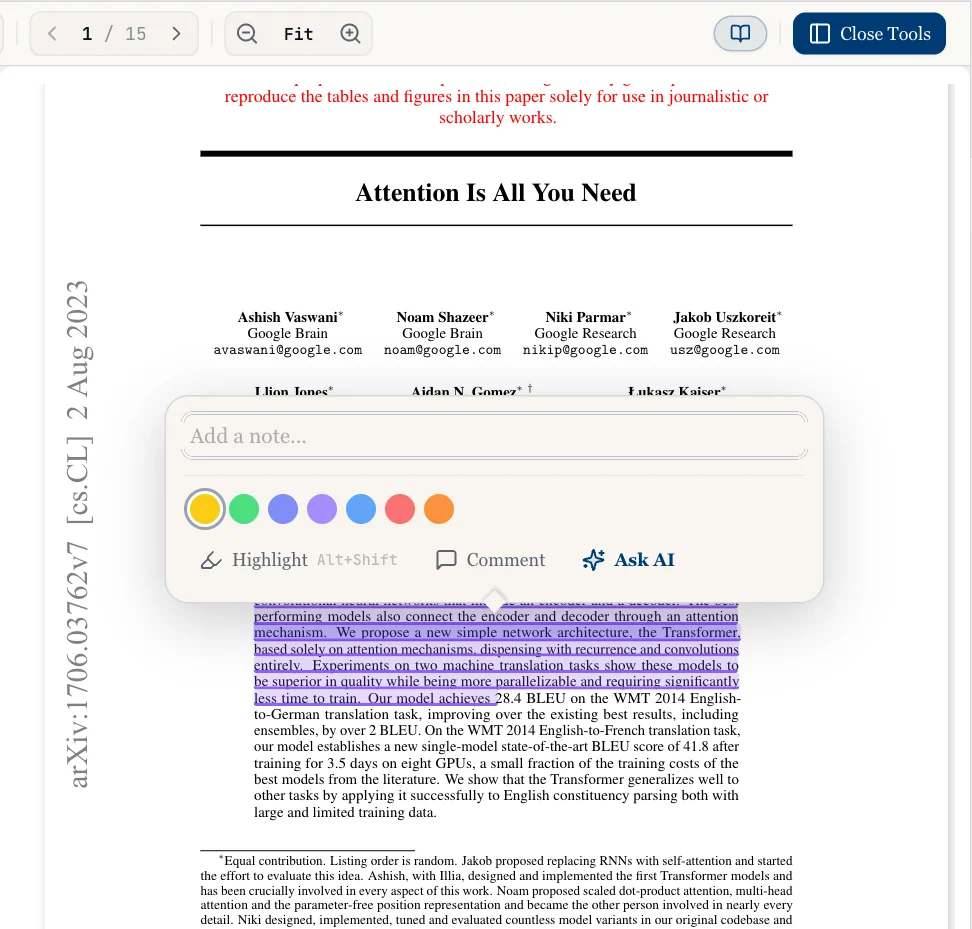 The toolbar that appears when you select text
The same selection toolbar also has Comment (see below) and Ask AI, which sends the selected text to the Q&A tab. See Ask questions about a paper.
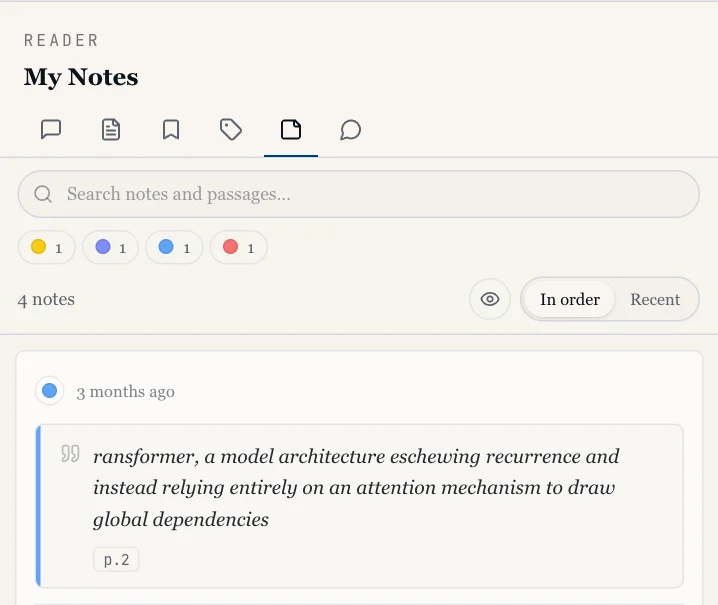 The My Notes tab
Skim with automatic highlights
- Open the Highlights tab.
- Click Enable. Literia identifies the key sentences and marks them by type: Objective, Method and Result. While this runs, the button shows Extracting....
- Under Highlight types, toggle each type on or off and change its color.
- Use the strength control (Hidden, Light, Solid) and Margin Labels to control how the highlights look on the page.
- Click Disable Skimming to turn them off again.
Read the summary
Open the Summary tab for a structured summary of the paper: Overview with Key Takeaways, then Background, Methods, Results and the paper's claims, each with its evidence.
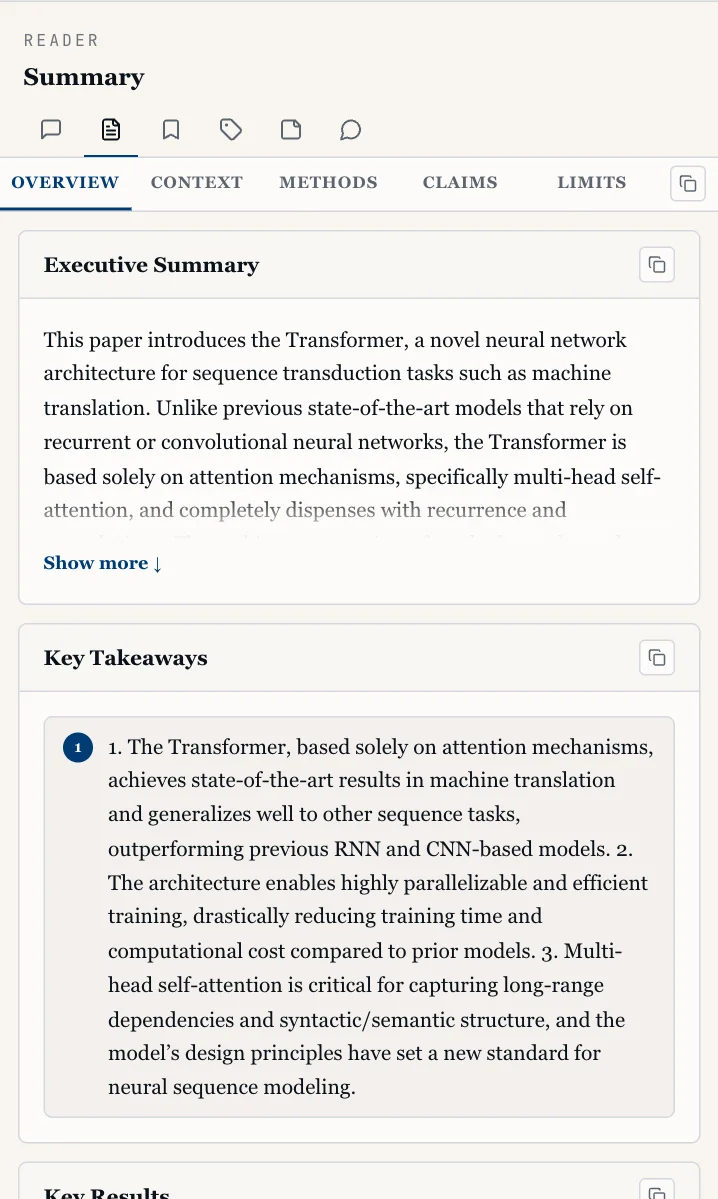 The Summary tab
If the summary is not ready yet, you will see No summary generated for this paper yet. Click Check Status to look again.
Discuss a paper in comments
- Select text and click Comment, or open the Comments tab and use Write your comment….
- Reply to a comment with Add a response..., and vote with Upvote / Downvote.
- Use the comment's actions menu to Edit comment, Delete comment, Follow comment or Report it.
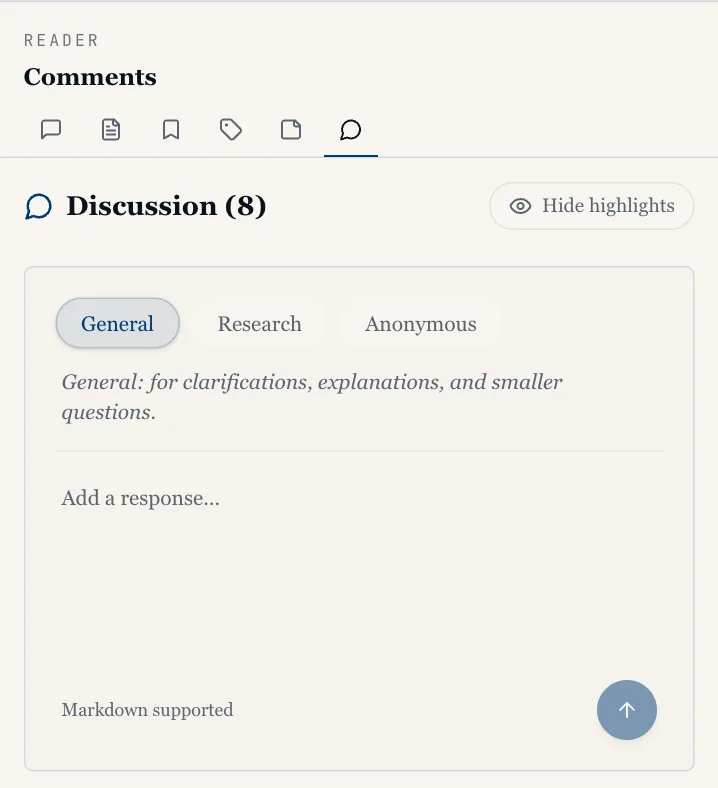 The Comments tab
If something goes wrong
- HTML Conversion Failed. The message under the heading explains why. Click Retry. If it keeps failing, keep reading in PDF view: every tool except HTML-only reading settings works there.
- "Advance features require sign in" when you click HTML: you are reading as a guest. Sign in to use the HTML view.
- No concept marks on the PDF. They are hidden while skimming highlights, your highlights or comments are shown. Open Scientific Concepts and check Highlight is on, or switch to HTML view.
- Highlights tab shows "Processing errors" or "No Highlights Found". Skimming could not find key sentences in this paper. Click Disable Skimming and Enable again later.
- Still stuck? See the FAQ or contact us.